Introduction
"Custom Keyboard" is a new feature introduced in API_LEVEL 4.2, enabling developers to create personalized keyboard widgets that integrate deeply with the system keyboard. It significantly expands the capability boundaries of the system keyboard, addressing the limitations of language support and the inability to meet diverse input needs of global users, providing a more intelligent and localized watch input experience.
System Keyboard Functionality Overview
Before introducing "Custom Keyboard", let's briefly introduce the system keyboard functionality.
The main use case is currently message replies (support varies by region and device model). When receiving app notifications, some messages support reply functionality. Clicking on them will bring up the system keyboard for input.
Zepp OS is continuously expanding the use cases for system keyboards, and more scenarios will support keyboard input in the future.
The built-in English full keyboard supports 6 languages: English, French, German, Italian, Portuguese, and Spanish, while also providing symbol and emoji input. Some regions also support voice input.
The image below shows the process of replying to Instagram messages on iOS devices using Beeper. For a complete operation guide, please refer to How to Reply to iOS Message Notifications on Amazfit Devices
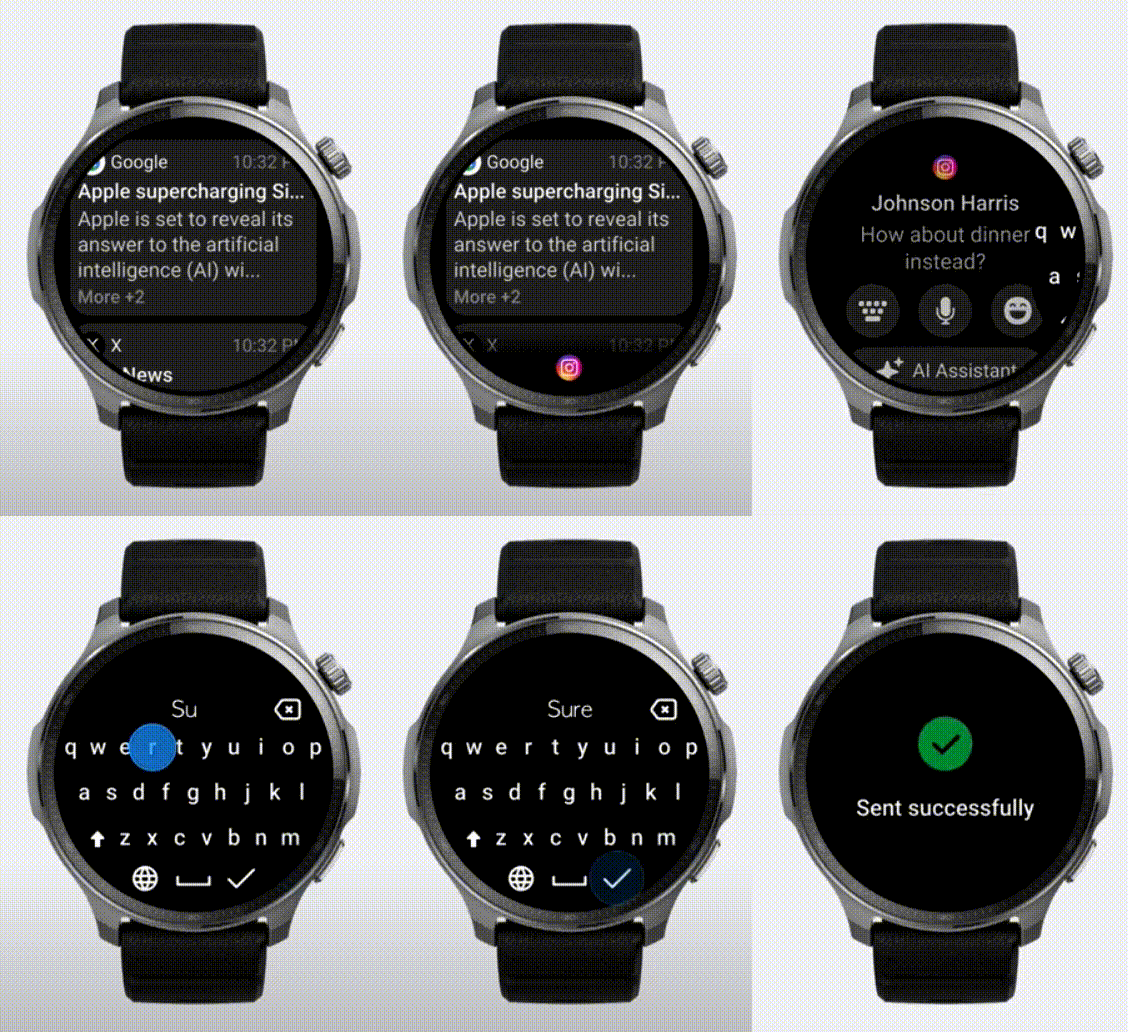
Beyond message reply scenarios, API_LEVEL 4.0 opened up the system keyboard SYSTEM_KEYBOARD API, allowing developers to invoke the system keyboard in Mini Program applications to implement text input functionality without having to implement keyboard UI and input logic within the Mini Program.
As user communities become more globalized and diverse, the demand for text input continues to grow. API_LEVEL 4.2 introduced the "Custom Keyboard" feature, enabling developers to create personalized keyboards that support more languages and meet diverse input needs.
Custom Keyboard Usage Introduction
"Custom Keyboard" is a further extension of system keyboard functionality, allowing developers to create personalized "Custom Keyboard Widgets". Like Mini Programs, they need to be downloaded from the app store. After installation, they are enabled in System Settings → Preferences → Keyboard menu (only one "Custom Keyboard Widget" can be enabled at a time), and users can switch to use them during input.
You can download "T9 Keyboard" from the app store to experience it. The device needs to support API_LEVEL 4.2.
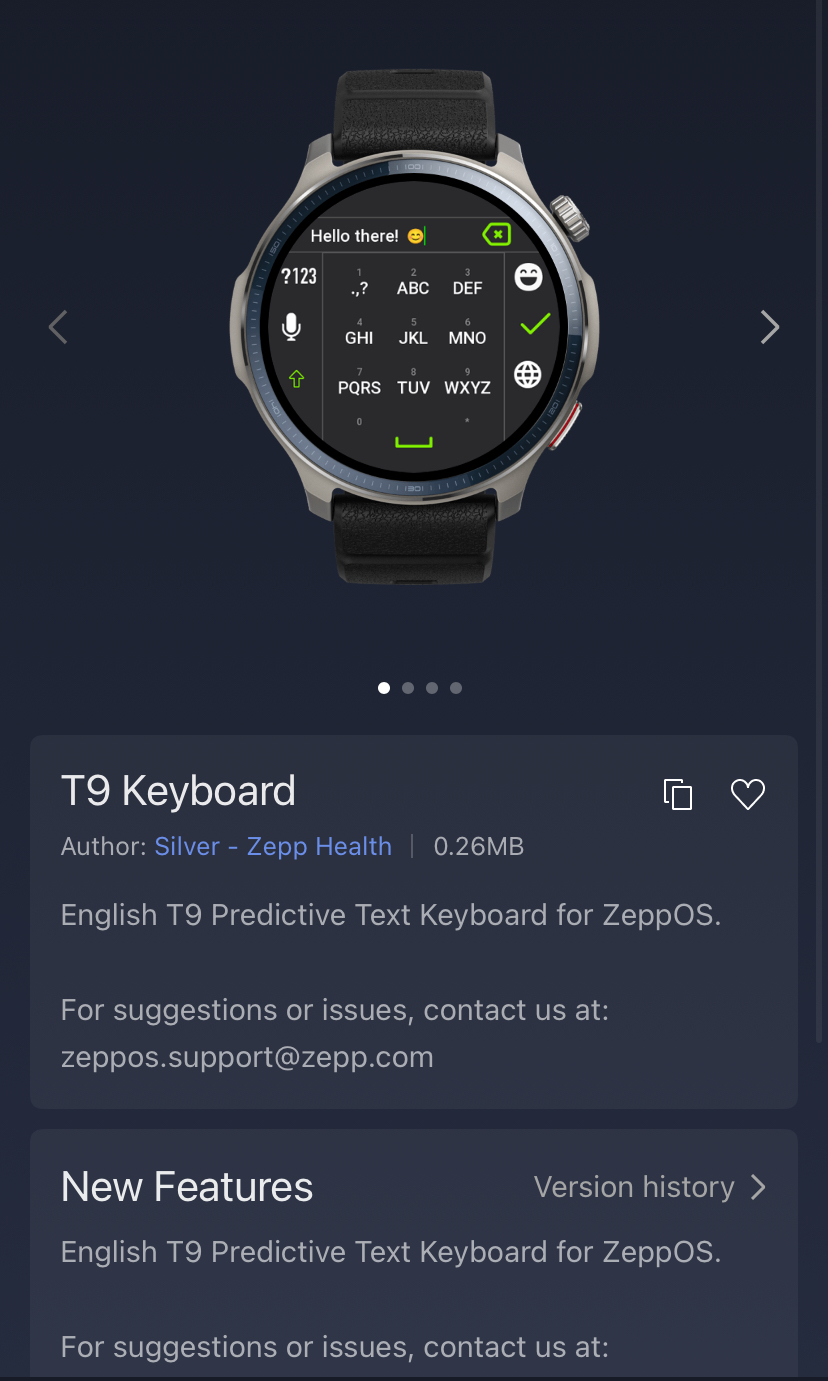
Some device models may not be able to search for this app in the app store. You can visit the project source repository and use the zeus preview command to experience it on a real device.
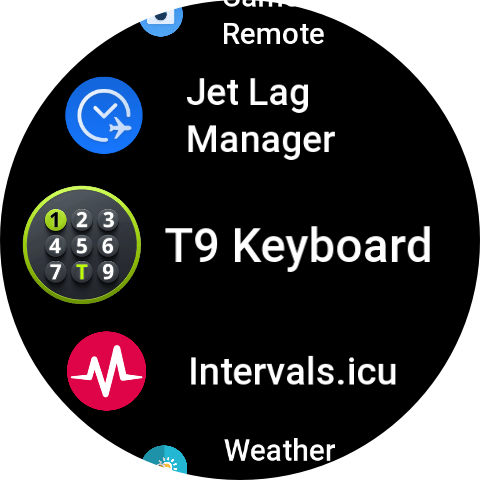
The "Custom Keyboard" has a mini app main body that can be accessed from the app list.
If the keyboard is not enabled, enter the keyboard enable guide to complete the keyboard enable settings in system settings.
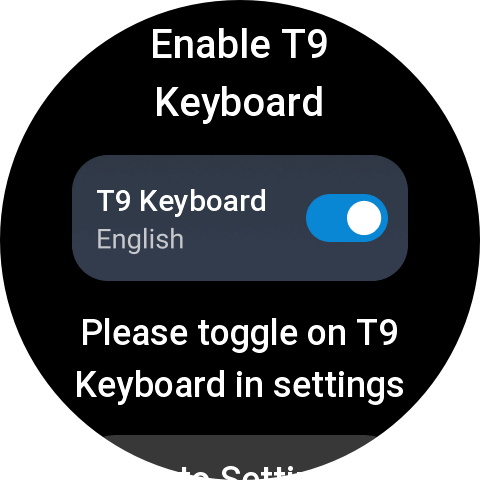
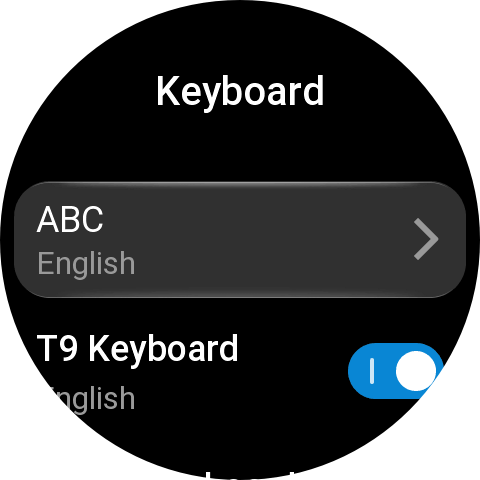
After completing the settings, return to the mini app and enter the keyboard switch guide to learn how to switch to the "Custom Keyboard Widget".
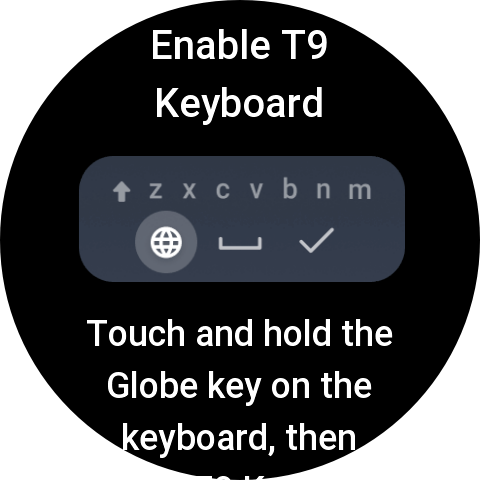
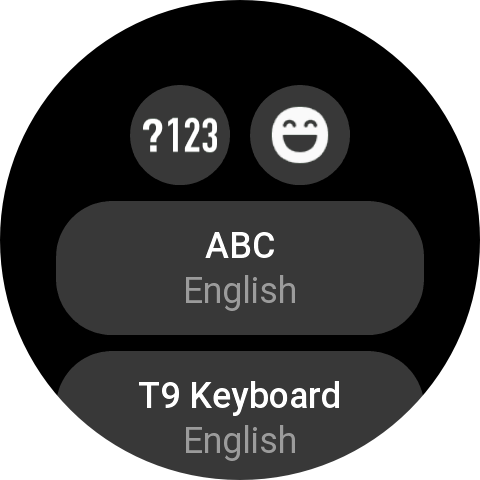
Click the button at the bottom of the page to invoke the system keyboard, then click the globe icon to switch to T9 Keyboard.
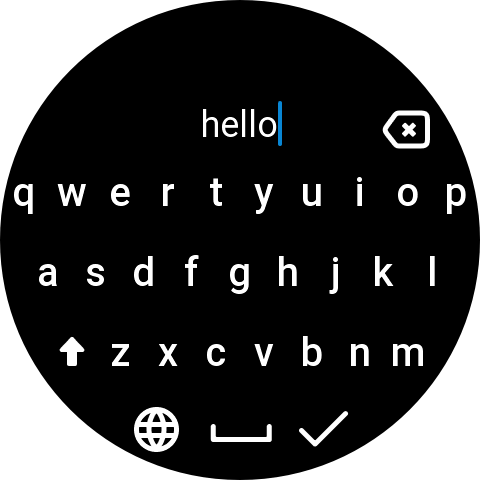
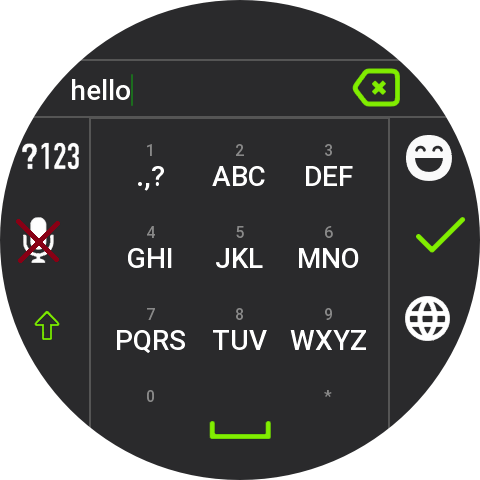
If you need to quickly switch to a specific keyboard, long press the globe icon to enter the keyboard selection page:
The image below shows the actual input effect of T9 Keyboard:
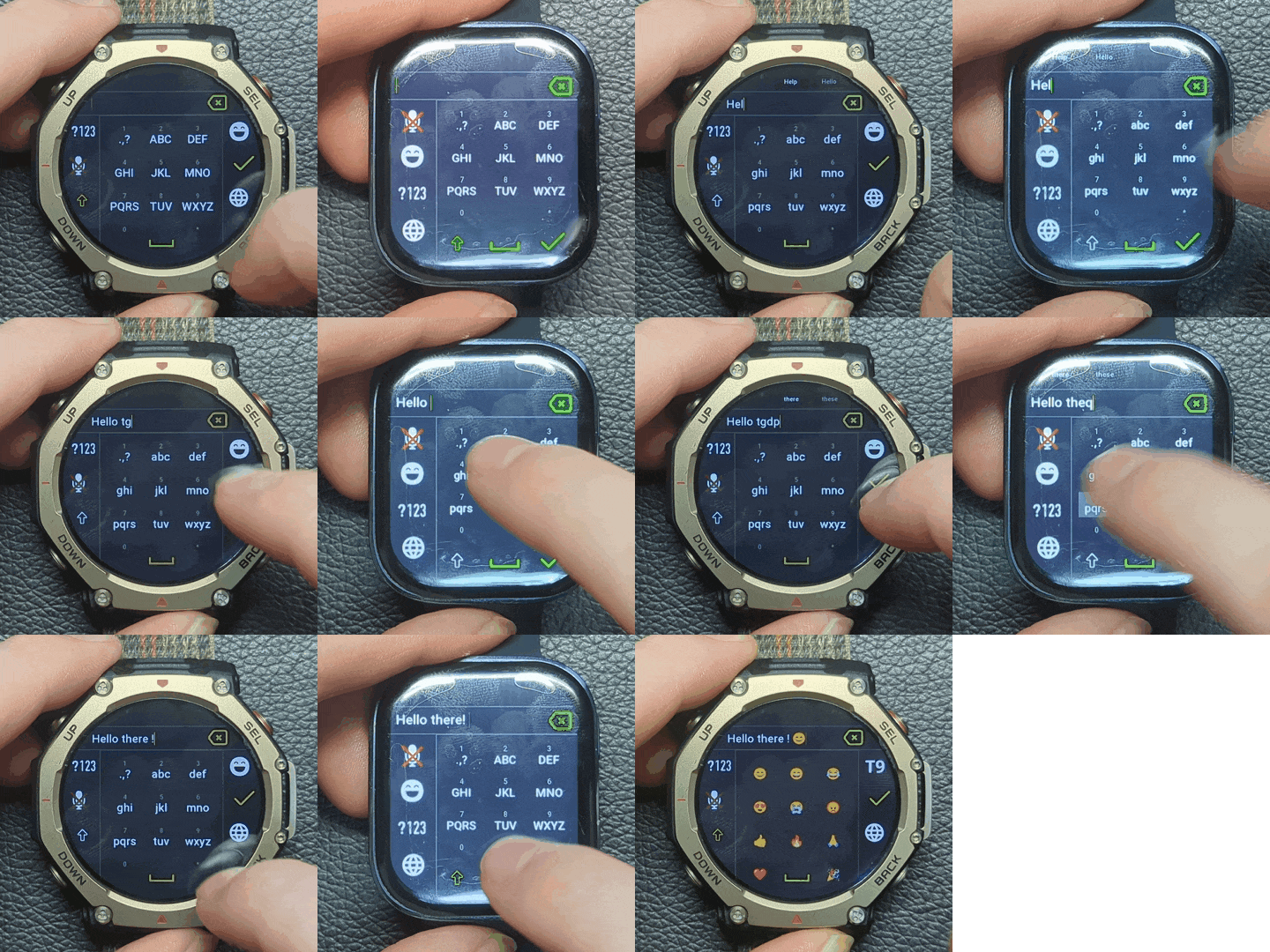
Through this example, you can see that "Custom Keyboard" integrates perfectly with system keyboard functionality. Developers can leverage powerful keyboard APIs to implement the following features:
- Appearance Customization: Customize keyboard styles, themes, and color schemes to meet different users' aesthetic needs
- Text Prediction: Display predicted words during input for quick user selection
- Multi-stage Input: Support pinyin and kana input for languages like Chinese, Japanese, and Korean, providing candidate word panels
- Automatic Punctuation Completion: Intelligently complete quotation marks, question marks, and other punctuation symbols to reduce input operations
- Smart Capitalization: Automatically switch letter case based on context
- Intelligent Correction: Use algorithms to correct spelling errors
- Quick Input: Double-tap space to automatically input period and space
- Swipe Input: Support gesture input to improve input efficiency
- Cursor Movement: Move cursor by sliding finger in the keyboard area